
Prepare your account
Create a key in Sol API Keys and check that you have credits available. In Vapi, create a test assistant or open an existing one.
You need an account and credits in both services. Sol bills speech generation; Vapi and your other providers bill their services separately.
Create the credential
In Vapi, open Integrations → Server Configuration and select Add Custom Credential.
- Authentication Type
- Bearer Token
- Credential Name
- Sol
- Token
- Your Sol API key
- Header Name
Authorization- Include Bearer Prefix
- Enabled
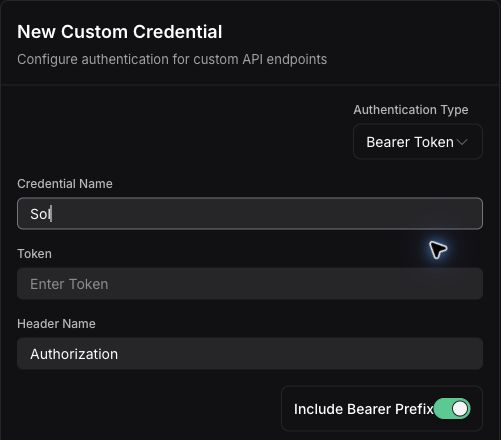
Select Save. Then open View Details and copy the Credential ID for the next step.
Connect the voice
Save the voice and its credential on the assistant using Vapi’s API. The dashboard shows Custom Voice and Server URL; the credential is linked through credentialId.
- Copy the assistant ID from the top of its page. Replace
YOUR_ASSISTANT_IDin the command. - Replace
YOUR_CREDENTIAL_IDwith the credential ID from step 2. - In your terminal, set
VAPI_API_KEYto a Vapi private key from Vapi → API Keys. This is separate from your Sol key.
export VAPI_API_KEY="YOUR_VAPI_PRIVATE_KEY"curl --fail-with-body --request PATCH \
"https://api.vapi.ai/assistant/YOUR_ASSISTANT_ID" \
--header "Authorization: Bearer $VAPI_API_KEY" \
--header "Content-Type: application/json" \
--data '{
"voice": {
"provider": "custom-voice",
"server": {
"url": "https://api.buildsol.ai/v1/integrations/vapi/tts",
"credentialId": "YOUR_CREDENTIAL_ID",
"timeoutSeconds": 30
}
}
}'A successful response returns the updated assistant. Reload the dashboard and open Voice → Edit: you’ll see Custom Voice and the Sol URL.
https://api.buildsol.ai/v1/integrations/vapi/ttsChoose another voice (optional)
The URL above uses the default voice. To choose another, get its ID from GET /v1/voices and append ?voice_id=YOUR_VOICE_ID to voice.server.url. Run the command again with that URL.
Use the URL parameter to select the Sol voice; the dashboard’s Voice ID field alone does not select it.
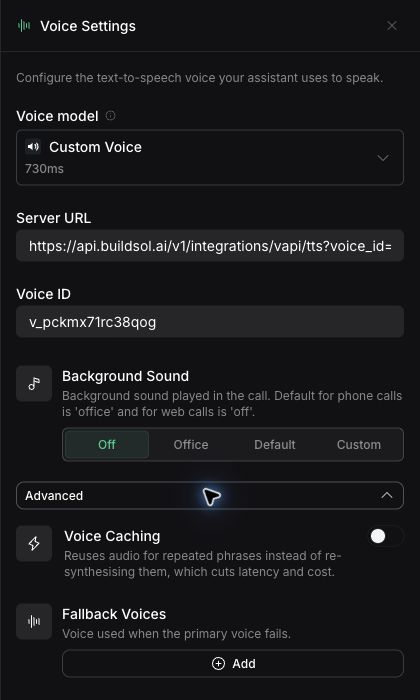
Always use the saved assistant. Vapi may withhold the credential if you send the URL as a temporary configuration when creating a call.
Test your assistant
- In Transcriber, select Spanish. In the model prompt, ask it to respond in Spanish.
- Save your assistant changes; if Vapi shows a draft, select Publish and check the version you are testing.
- Select Talk and say: “Hola, cuéntame qué puedes hacer”. You should hear the response in Sol’s voice.
- Check Vapi’s Logs and Sol usage to confirm the connection is working.
600–900 ms
An indicative range to first audio. Latency depends on where Vapi connects to Sol, distance to the server and network conditions; it can fall outside this range.
Total assistant latency also includes transcription, the language model response and detecting when you stop speaking. Measure your call in Logs; the dashboard estimate is not a measurement of Sol.
Troubleshooting
401: authentication error
Check that the Sol key is active, Header Name is Authorization and Bearer Prefix is enabled. The credentialId must be inside voice.server on the saved assistant.
No voice audio
Check Sol credits, the URL and any errors in Logs. A private voice must belong to the API key’s account. To verify Sol, temporarily turn off Voice Caching and fallback voices in Voice → Advanced.